Themes
Style your forms with colors, fonts, layouts, and branding — and reuse a look across every form.
Apply a theme#
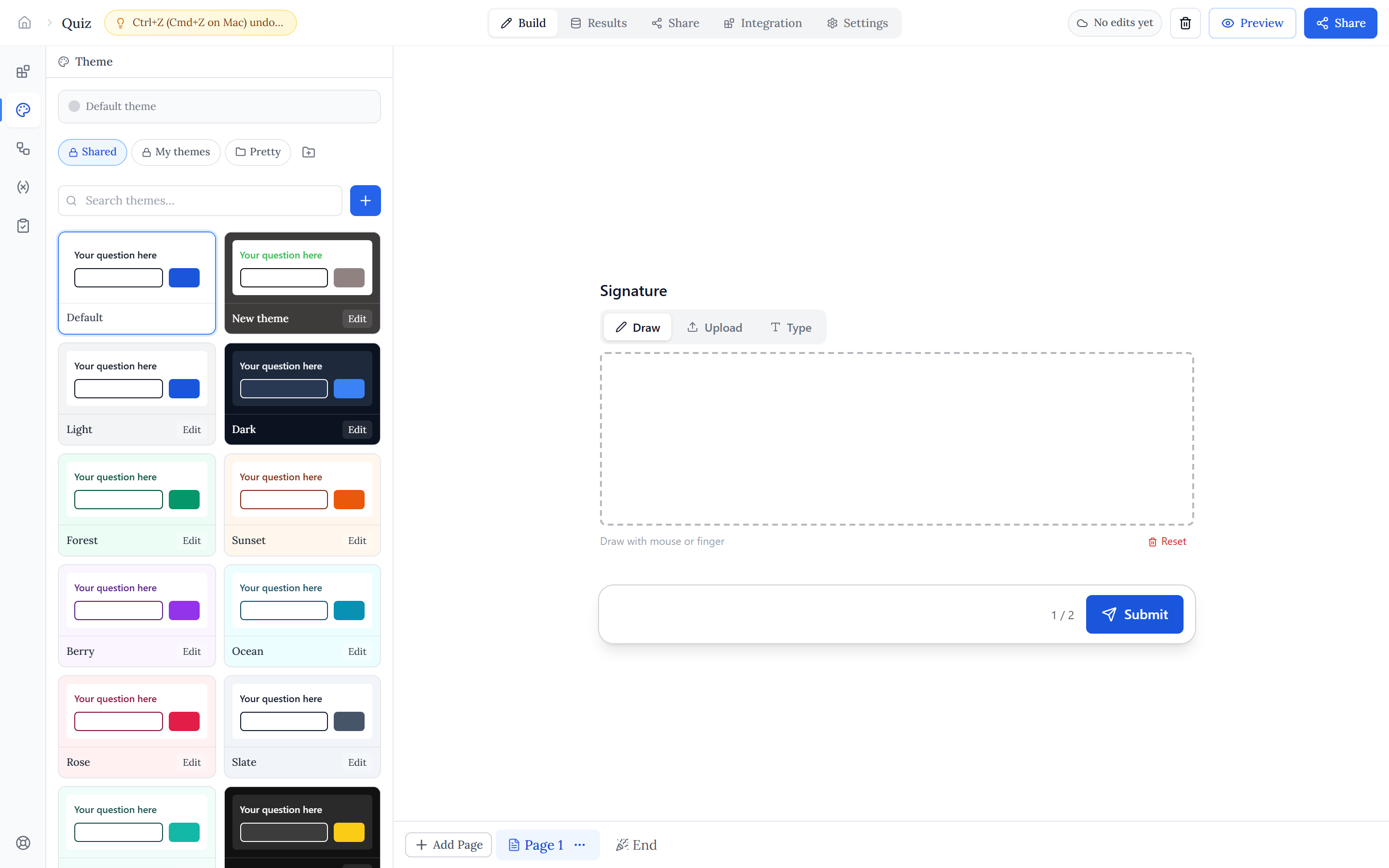
Open the Theme tab in the left rail. Each form is bound to one theme; click a theme to apply it and the colors and typography update instantly in the preview. New fields you add inherit the active theme automatically.
Colors & typography#
Click Edit on a theme to open the theme editor. There you set the core look:
- Primary color — buttons and accents.
- Background color — the page area behind the form.
- Question color and answer color — the text of your labels and inputs.
- Font — pick from the font list.
- Body font size — scale the overall type.
Layout & background#
Choose one of six layouts — Center, Left, Right, Banner, Full image, or Card — to change how the form sits on the page. The image layouts let you add a background image and tune its opacity and brightness so text stays readable.
Logo & branding#
A theme can carry your brand logo — set its image, position, size, and an optional link — so the same logo appears on every form that uses the theme. This keeps branding consistent without editing each form by hand.
Organize & reuse#
Themes live in folders: a Shared folder visible to everyone in your organization, your own My themes, and any folders you create. From a theme you can Duplicate to fork a copy or Save your edits.